
With A6 Giving, you can add your church's custom funds. Funds help you track how your donations were designated to be spent.
Add new fund
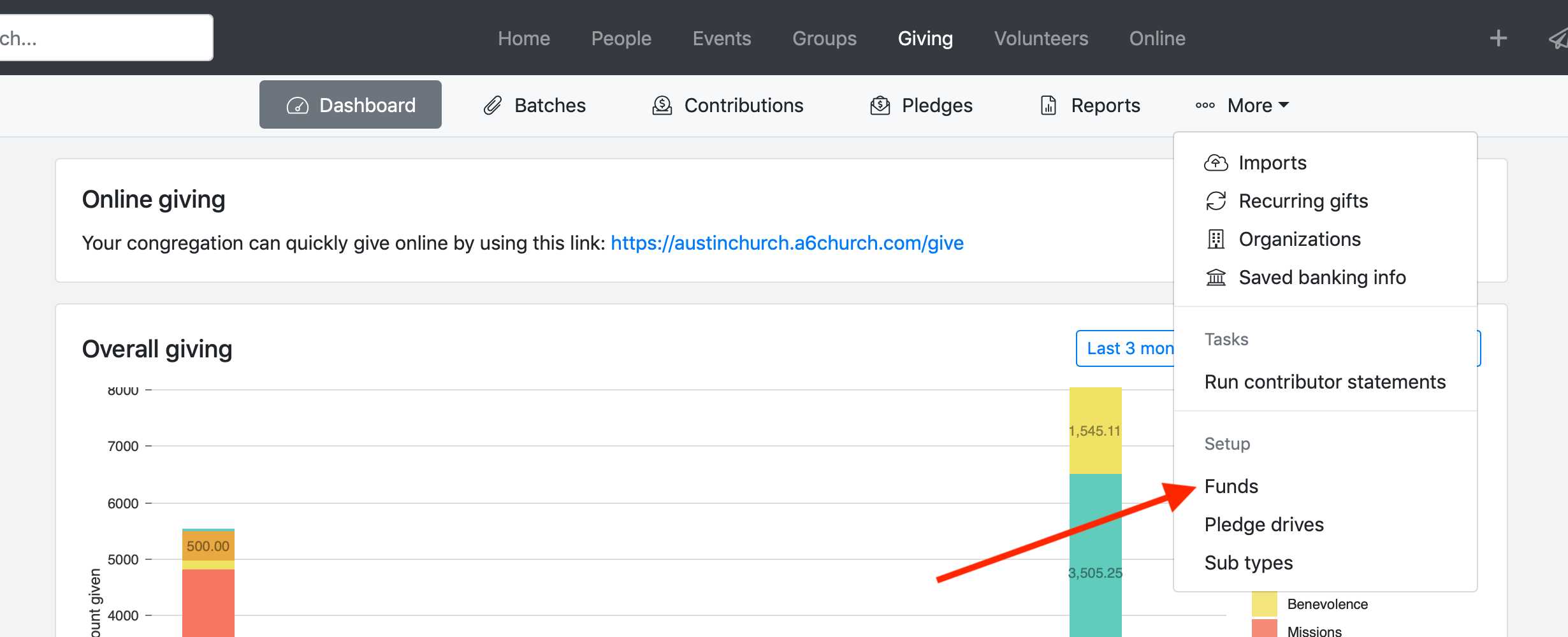
- Navigate to Giving > More > Funds.
2. Click New fund.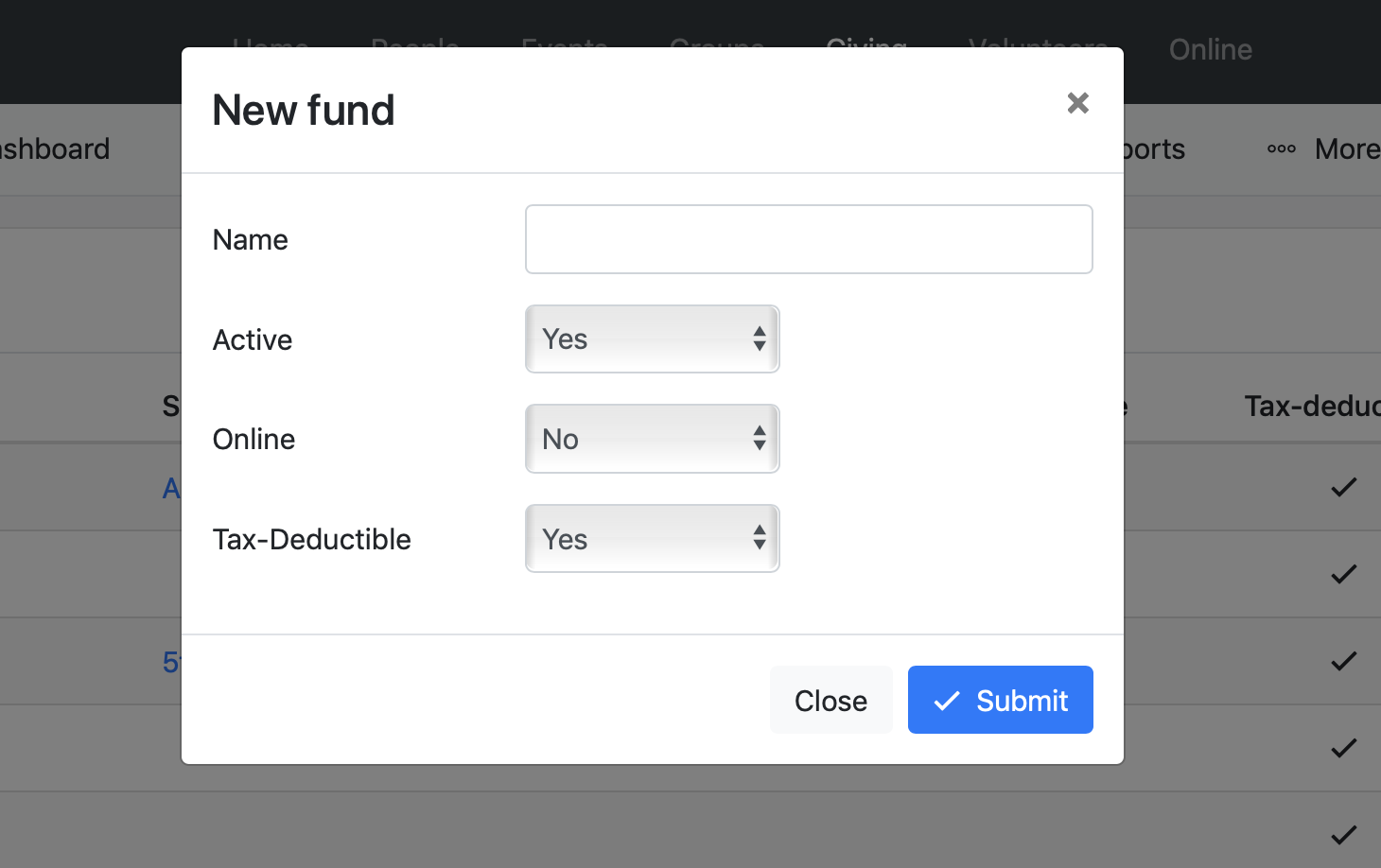
Fund options
- Name: Set a name for your fund. Example: Children's Ministry
- Active: Choose whether this fund is currently active. Disabling a fund will remove the fund from reports and online giving.
- Online: If yes, this fund will be available for online giving. If no, people will not be able to designate their donation to this fund.
- Tax-Deductible: If yes, donations to this fund are tax deductible and will show as such on contributor statements.
Add sub fund
- Create the parent fund following the step above "Add a fund". If the parent fund already exists move to Step 2.
- Navigate to Giving > More > Funds. You should see a list of your existing funds.
- Click the "+" button next to the parent fund.
- Fill out the form to create your new sub fund.
Edit or delete fund
- Navigate to Giving > More > Funds.
- Click on the name of the fund you wish to delete.
- To delete the fund, click Delete fund. To edit the fund, fill out the form and click Submit.